Too Many Chrome Tabs? How to Group, Archive, and Restore Them
Too many Chrome tabs open and afraid to lose them? Group active work by task, keep one tab per site, archive the rest locally, and restore anytime.
Don’t rush to close every tab at once
When your Chrome tab bar shrinks into tiny unrecognizable favicons, you don’t have to choose between closing everything and living with the clutter. Start with a simple three-way split: group the tabs you are actively working on, archive the ones you might need later, and close the pages you are done with.
Most people hesitate to close tabs not because they are reading all of them right now, but because they worry about losing their trail or having to search for a page all over again. Separating “keeping a clue” from “clearing the window” makes cleanup much easier.
Start with Chrome’s built-in tools
Before installing any extension, desktop Chrome already includes three helpful features for light tab organization (see Chrome Help for official instructions):
- Tab Search: Click the dropdown button at the top-left of the tab strip or press
Ctrl + Shift + A(⌘ + Shift + Aon macOS) to search open and recently closed tabs by title or site. Best when the tab is still open and you just can’t spot it. - Native Tab Groups: Right-click any tab, choose “Add tab to new group,” give it a name and color, and drag related tabs into it. Click the group label to collapse or expand the whole set.
- Reopen Closed Tab: Press
Ctrl + Shift + T(⌘ + Shift + Ton macOS) to reopen tabs in reverse order. Handy for 1 or 2 accidental closes, though tedious if you cleared a large batch.
Once a window grows to dozens of tabs—especially from the same handful of websites—dragging tabs manually or closing them one by one starts to feel like a chore. That is where a focused Chrome tab manager helps.
Group active tabs by work scene
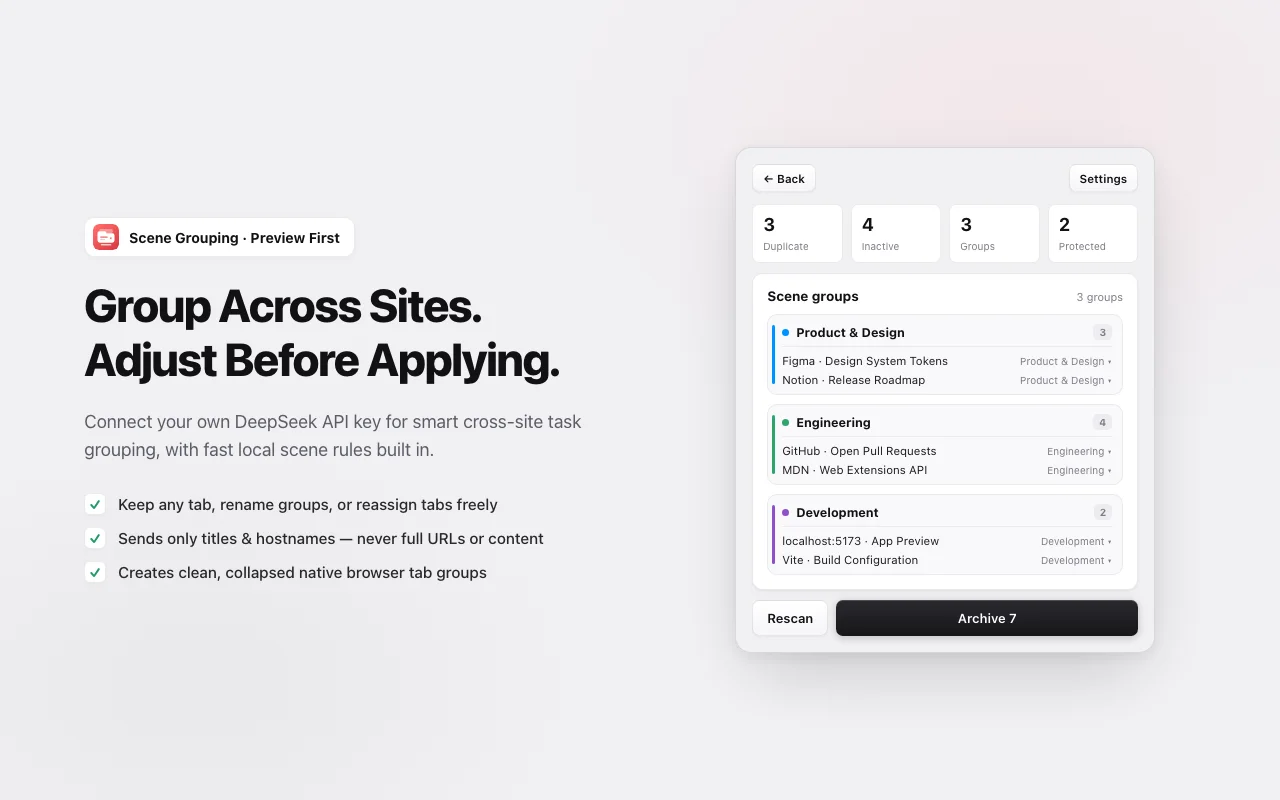
When you are juggling multiple tasks and want to keep everything open, structure matters more than closing. With TabDock, you can organize open tabs into native Chrome tab groups without dragging each one manually.
Preview first, then apply
Choosing “Group by scene” never mutates your window blindly. TabDock shows a complete preview where you can uncheck tabs you want to leave out, rename any group to match your project, or move tabs across groups. When you are done with groups later, “Ungroup all” dissolves them while keeping every tab open.
Works offline without AI
Built-in local scene rules handle common dev, design, and documentation workflows right after installation—no API key required. If you want optional cross-site semantic grouping, you can add your own DeepSeek API key in Settings; only tab titles and hostnames are sent, never full URLs, query parameters, or page content.
Opened many tabs from the same site? Keep one clue, archive the rest
In everyday browsing, tab overload rarely comes from 30 completely different websites. It usually comes from opening multiple docs, pull requests, or search results on the same few domains.
What JustOne actually does
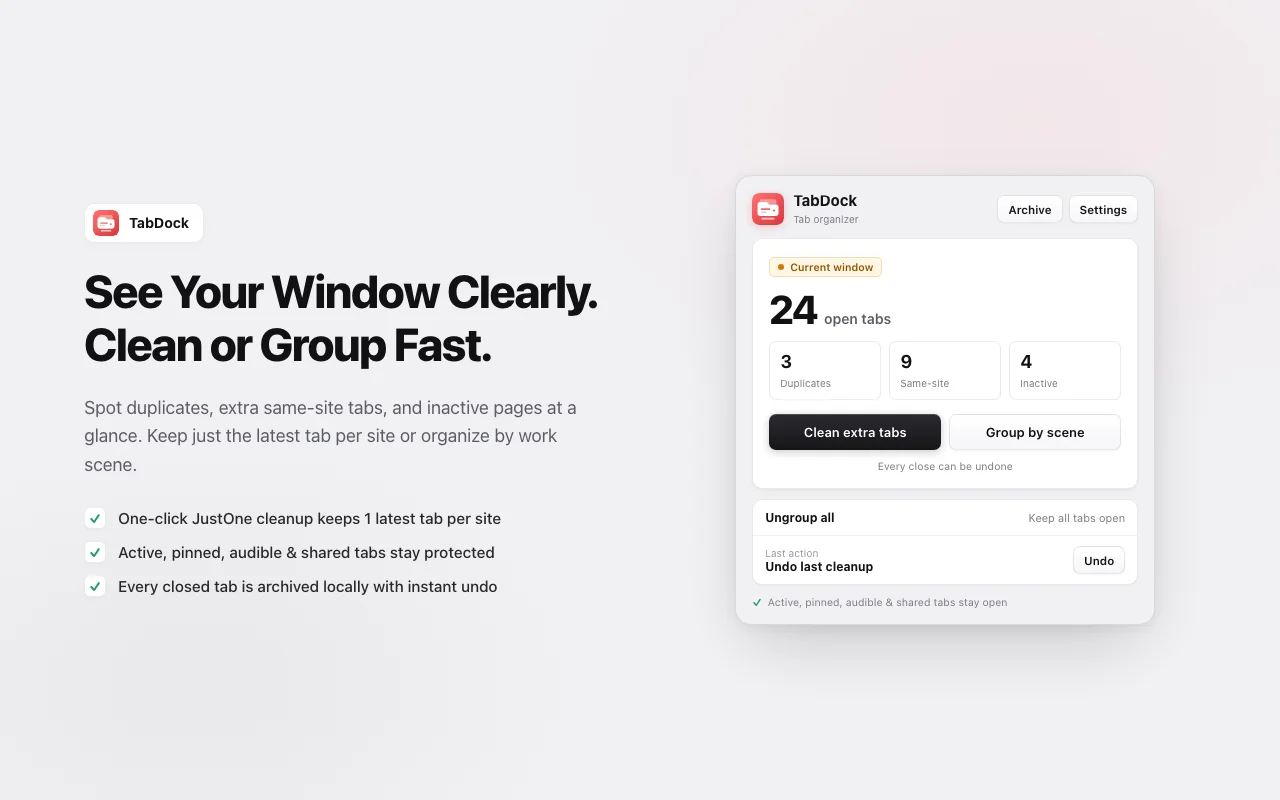
Open the TabDock popup to see exact counts of duplicates, same-site extras, and inactive tabs. Clicking “Clean extra tabs” runs a clear, predictable rule:
- Groups eligible tabs in the current window by website domain;
- Keeps the most recently accessed tab per site open as your memory trail;
- Archives every extra tab locally first, then closes them.
JustOne does not try to guess which page is subjectively “most important,” and it goes further than simple exact-URL deduplication—giving you a calm tab bar while preserving one entry point per website.
Why a site may still keep more than one tab
If a site keeps two or three tabs after cleanup, TabDock’s protection rules are doing their job. Five categories are always skipped:
- Active tab (the page you are currently viewing);
- Pinned tabs;
- Audible tabs (meetings, music, or podcasts);
- Screen-shared or captured tabs;
- Browser internal pages (such as Settings or Extensions).
Right before closing, TabDock also re-checks live tab states and skips any tab that was just revisited or changed.
How to restore closed tabs later
Confidence to clean up comes from knowing you can get pages back. Before closing anything, TabDock writes each tab’s title, URL, close reason, and timestamp into your local archive.
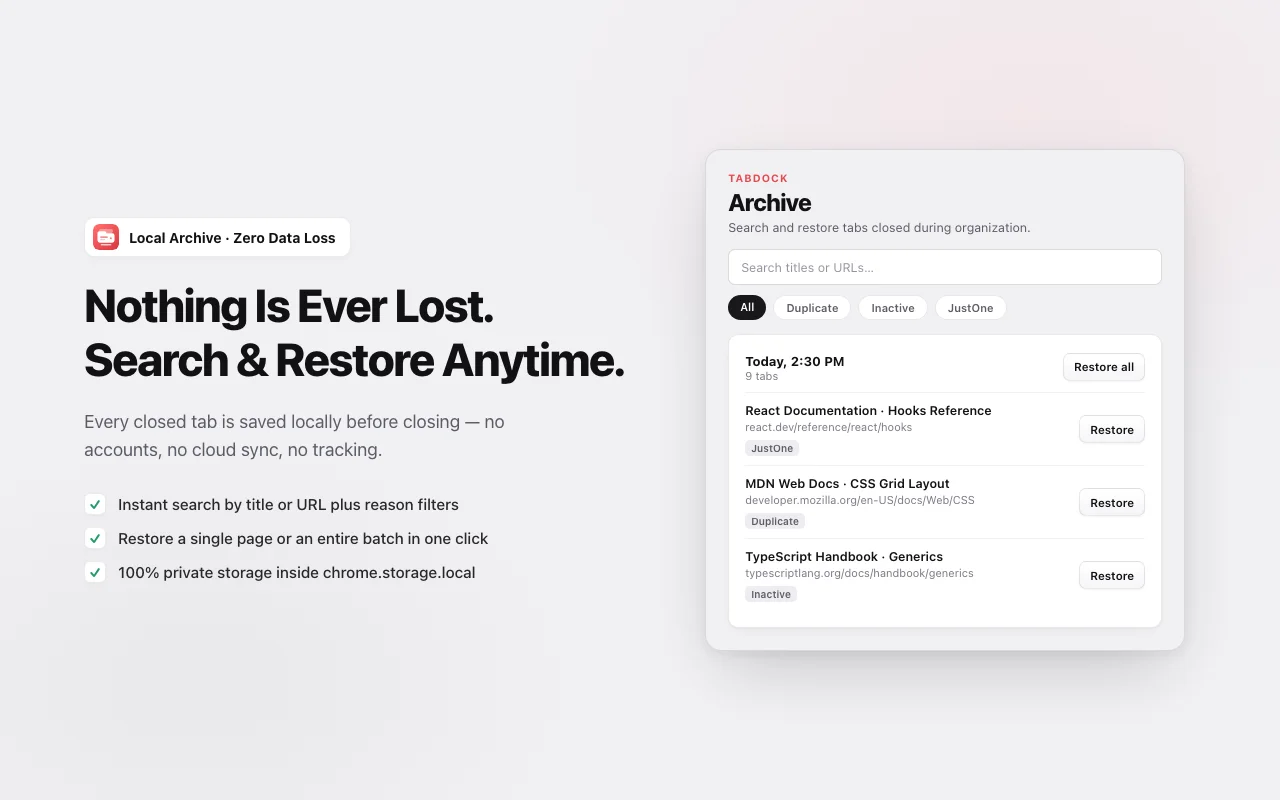
- Immediate undo: Right after cleanup, use the one-click “Undo” button in the popup to reopen the entire batch.
- Search later: Open the Archive page anytime to search by title or domain, or filter by reason such as “Duplicate” or “Same-site.”
- Single or batch restore: Reopen one specific page or restore a full cleanup session whenever you are ready to pick up where you left off.
Two honest boundaries to keep in mind: first, archives live strictly in your browser’s local storage (chrome.storage.local) and do not sync across devices; second, restoring reopens the saved URL, so it cannot guarantee recovering unsaved form drafts or expired login sessions.
When you don’t need TabDock
- You usually keep under a dozen tabs open: Chrome’s built-in Tab Search and manual Tab Groups are already lightweight enough.
- You need cross-device cloud sync: If syncing saved tab lists between work and home computers is your main goal, use a cloud-synced bookmark manager instead of a local archive.
If your browser regularly piles up to 30+ tabs and you want a safe, reversible way to tidy up, you can install TabDock free from the Chrome Web Store.
Quick answers
What should I do when I have too many Chrome tabs?
Split them into three buckets: group active work with Chrome’s native tab groups, archive pages you might need later, and close pages you are done with. For repeated tabs from the same sites, TabDock’s JustOne mode keeps the latest tab per site and archives the rest locally.
If I keep one tab per site, will I lose the other pages?
TabDock saves closed tabs to your local archive before closing them and skips active, pinned, audible, screen-shared, and internal browser tabs. You can undo right away or search and reopen URLs later—just remember archives stay on this device and unsaved form drafts should be saved first.
How is this different from a duplicate tab closer?
A duplicate closer only removes tabs with the exact same URL. TabDock handles exact duplicates and also tidies multiple different pages opened under the same domain—keeping the most recently visited page as your anchor and archiving the rest.